SGS Portal Quick Start Guide
Login
- Visit www.portal-sgs.com and log in using your credentials.
- For first-time users, click “Forgot Password” and follow the prompts to set your password.
Devices
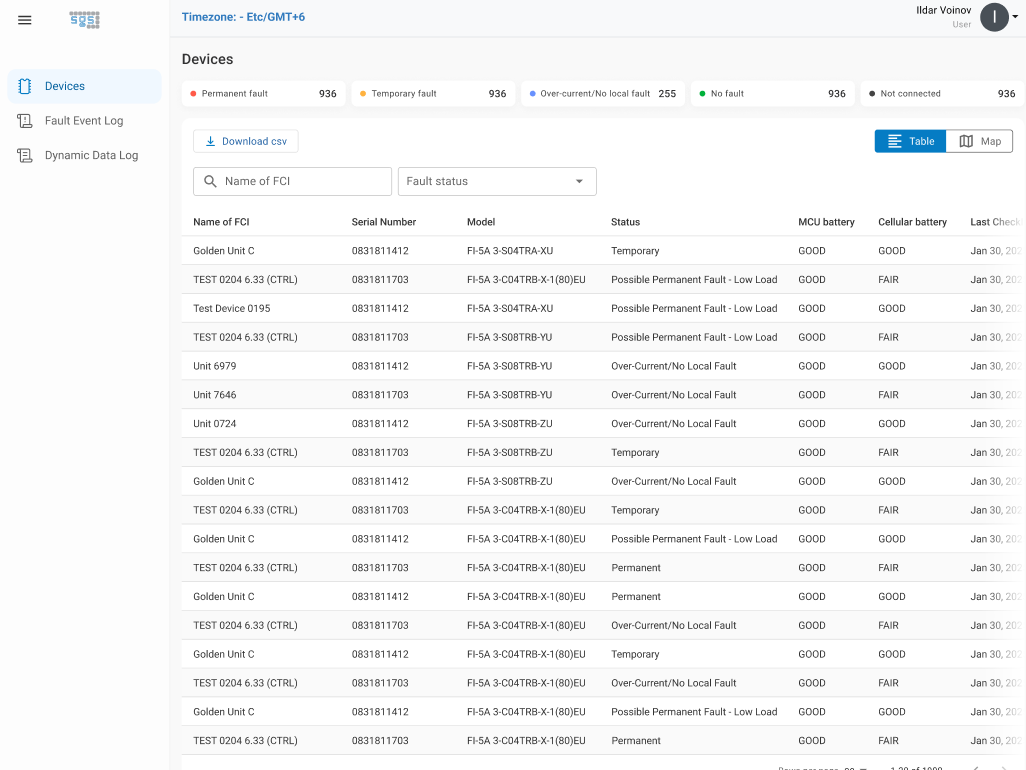
The Devices screen displays all devices associated with the user’s account, including key details such as battery status, check-in time, and location. Users can search, filter, and select a device to view daily logs, events, and average load data. Admins can edit devices to update the name, location, and Group(s) to which the device is associated.
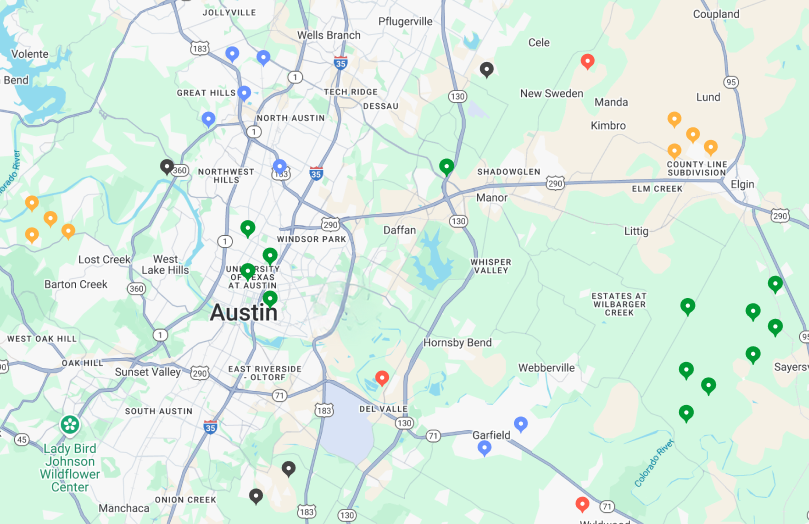
To switch to a geographic view, select the map icon in the top right corner. To display a device on the portal map, edit the device and enter the desired latitude and longitude coordinates.
New devices are shipped in Shelf Mode to preserve battery life during storage and shipping. Refer to the product instructions for steps to disable Shelf Mode. Once disabled, confirm the device is checking in properly to ensure it is operational.
Fault Event Log
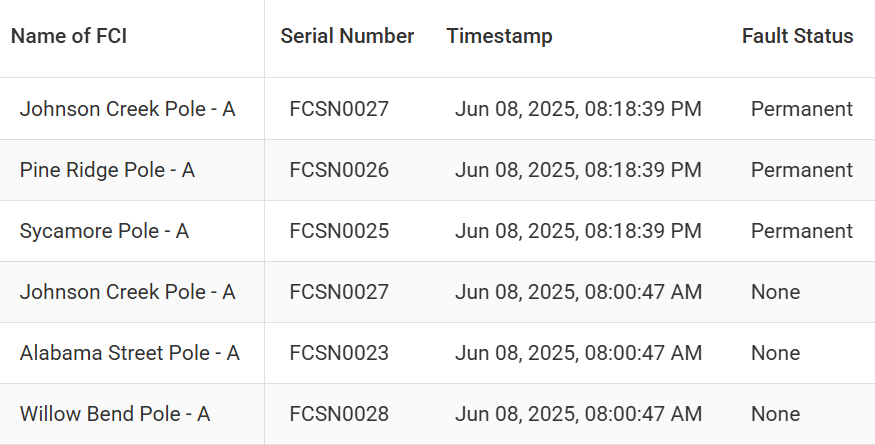
Fault Event Log displays a log of the critical events, e.g. fault events.
Dynamic Data Log
Dynamic Data Log displays all data registered on the portal; data may be limited to 30 days based on your user settings. These sets of data include daily check-ins as well as fault events.
Users & Roles
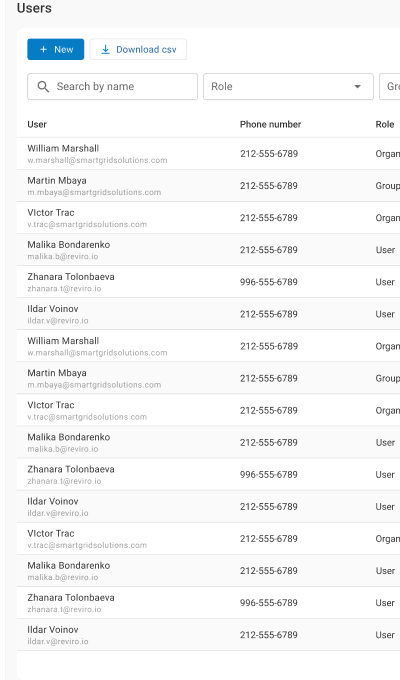
The Users screen displays all users within the organization, along with their contact details, assigned roles, and access levels. Admins can add, edit, or remove users as needed.
Roles
Organization Admin
Full administrative access, including creating groups, moving devices between groups, managing users, renaming devices, and adjusting device configurations.
Group Admin
Can manage devices within assigned groups, including editing device names and adjusting device configuration settings.
User
Read-only access to assigned devices and related information. Users cannot make changes to configurations or group assignments.
Groups
The Groups screen allows Admins to create and manage device Groups.
Notification Center
The Notification Center allows Admins to configure alerts by defining which events trigger notifications and which Recipients receive them.
Recipients
Recipients can be email addresses or phone numbers and are not required to be Users of the portal.
- Users are automatically added as Recipients using their contact information.
- Notifications for Users are disabled by default and can be enabled as needed.
- Admins can manually add additional Recipients.
Notification Configuration
Admins can configure:
- Which events trigger notifications
- Who receives notifications
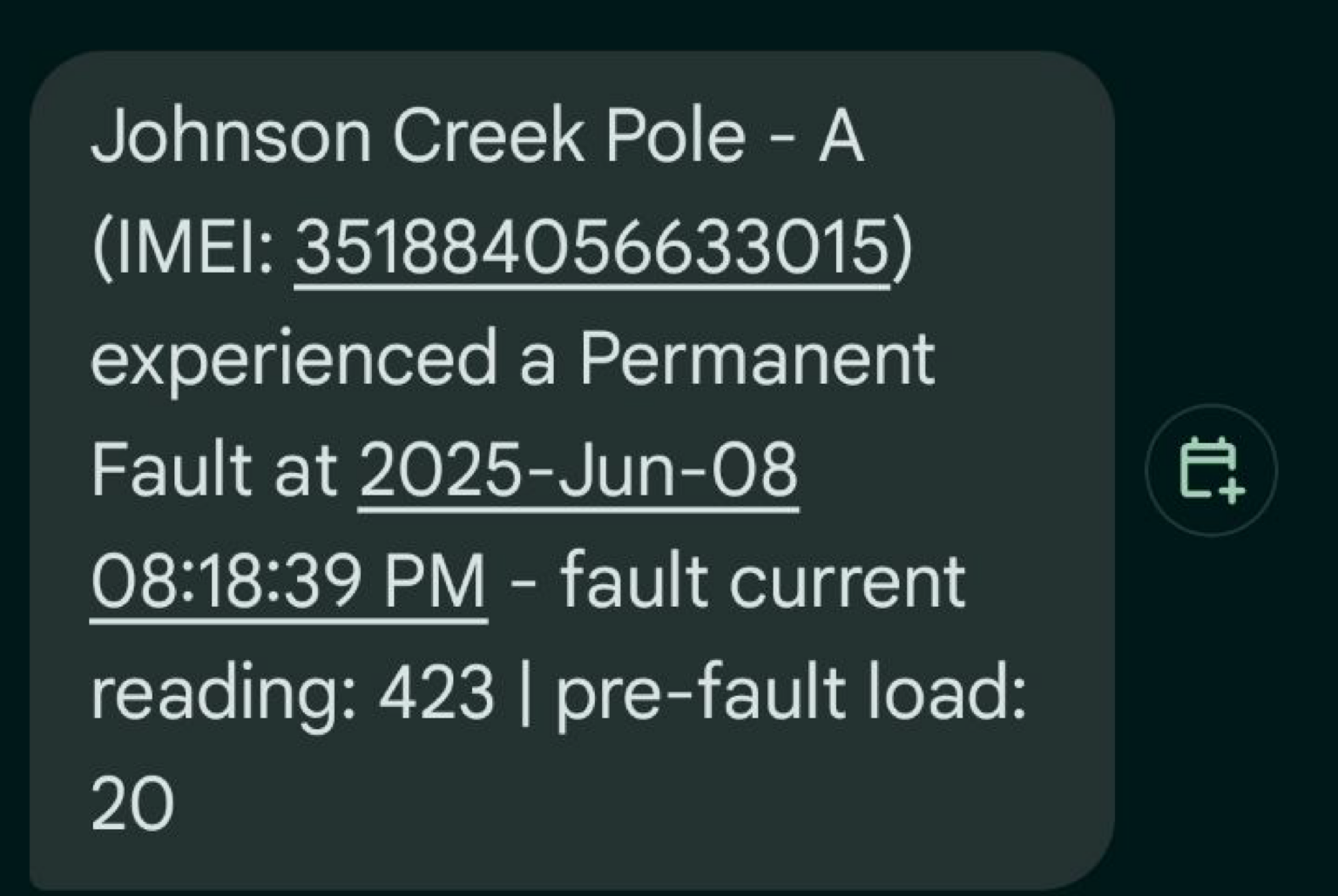
- Whether notifications are sent by email or phone
Group-Based Notifications
Notifications are sent for events related to devices within assigned Groups.