
SGS Portal Device Configuration
This section explains how to configure Devices using the SGS Portal. Configurations can be applied at the Device, Group, or Organization level, allowing users to manage individual Devices or apply consistent settings across multiple Devices.
Remote configuration requires FCIs running firmware 6.59 or higher.
Configuration Hierarchy
Organization-level configuration sets the default configuration for newly created Groups. When a new Group is created in the Groups page, it starts with the Organization’s saved configuration settings, if any exist.
Group-level configuration controls the saved configuration settings for Devices within that Group. When Devices are added to a Group, or when the Group configuration is changed within the Groups page, configuration updates are queued for the Devices in that Group and applied at each Device’s next successful check-in.
Device-level configuration applies settings to an individual Device. Device-level settings can be used when a specific Device needs custom configuration. If Lock Configuration is enabled, the Device will not be changed by future bulk updates or Group configuration updates.
Configuring a Device
On the Devices screen, select a Device and click Configure to open the configuration menu. Once a configuration is submitted, it will remain Pending until the Device’s next successful check-in, when the update will be sent to the Device.
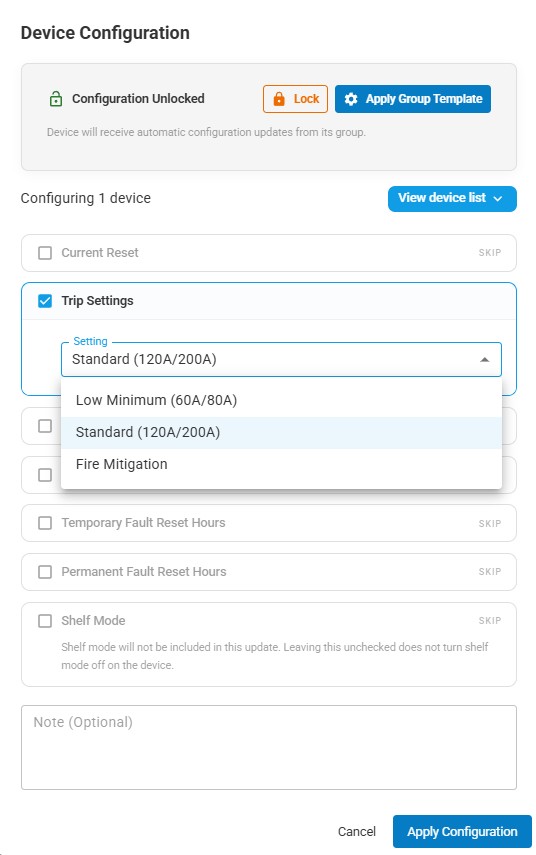
Current Reset
- Off - No current reset
- >50% Pre-fault Load (Standard Setting) - Resets when load returns above 50% of pre-fault level
- >5A - Resets when current exceeds 5A
Trip Settings
- Low Minimum (60A/80A) - More sensitive detection of lower-current faults. Trip point auto-adjusts to load, with minimums of 60A on loaded lines and 80A on a dead line (higher setting is to help avoid false positives during cold load pickup)
- Standard (120A/200A) - Default setting for typical use. Trip point auto-adjusts to load, with minimums of 120A on loaded lines and 200A on a dead line (higher setting is to help avoid false positives during cold load pickup)
- Fire Mitigation - Higher sensitivity for fire risk conditions. Auto-adjusting trip point with minimum trip point of 50A. Trip point is 2x of the peak load over the last 24 hrs
Overcurrent Alert
- On / Off - Enables or disables Over-current notification, which is an additional alert sent immediately after an overcurrent event. This is separate from the standard alerts issued for permanent and temporary faults
GPS Update
- Auto-update location - Triggers four consecutive GPS lock attempts over the next four days during the Device's daily check-ins. If 3 of the 4 reported coordinates (Reported Location) fall within 500 ft of each other, the portal automatically updates the Device's pinned map location (Registered Location). After the auto-update attempt is complete, the Device will return to attempting a GPS lock once every 30 days
- Enable GPS - Turns GPS on for the Device. When enabled, the Device will attempt a GPS lock once every 30 days
- Disable GPS - Turns GPS off for the Device
Temporary Fault Reset Hours
Sets the LED flash interval used to indicate temporary faults on the Device
Permanent Fault Reset Hours
Sets the LED flash interval used to indicate permanent faults on the Device
Shelf Mode
Places the Device into a storage state while it is not in active use. While in Shelf Mode, the Device will cease its daily check-ins. Shelf Mode will automatically turn off when the Device sees steady state load over 8A for more than 12 seconds, sees an overcurrent event, or when the Device is activated with a reset magnet
Device Locking and Applying Templates
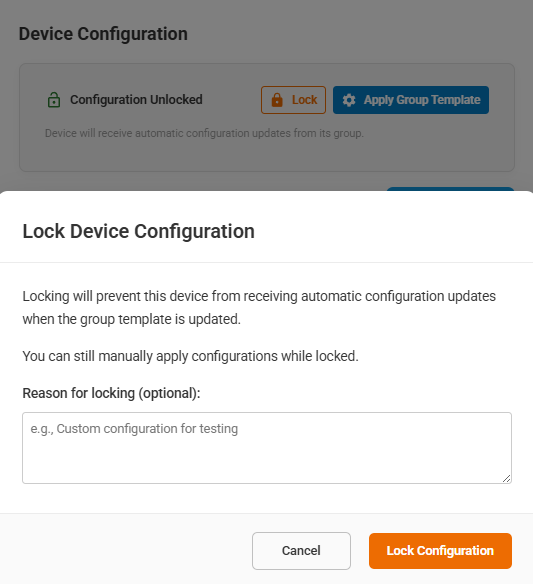
Lock Configuration
From the Device’s configuration menu, users can enable Lock to lock that individual Device’s current settings. When enabled, the Device will not be changed by future Group configuration updates or bulk configuration updates.
This is useful when a specific Device needs to keep custom settings that are different from the rest of its Group.
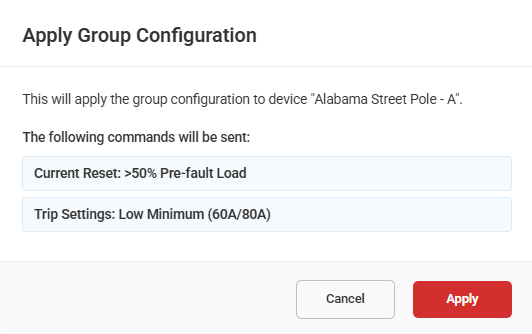
Apply Group Template
From the Device’s configuration menu, users can apply the saved configuration settings from the Device’s assigned Group to that individual Device.
Applying the Group configuration allows a Device to quickly return to the standard settings used by its assigned Group.
Group Configuration
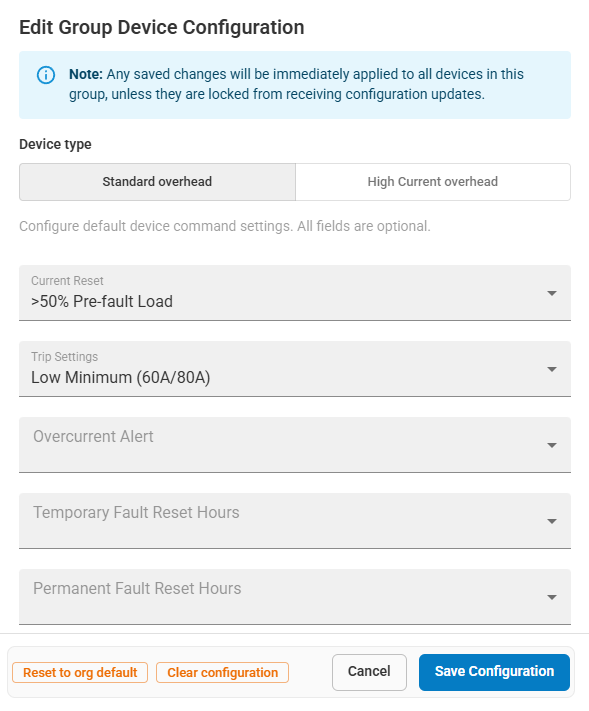
To configure Devices at the Group level:
- 1 Navigate to the Groups screen.
- 2 Create a new Group or select an existing one.
- 3 Click the three dots under Actions for the Group.
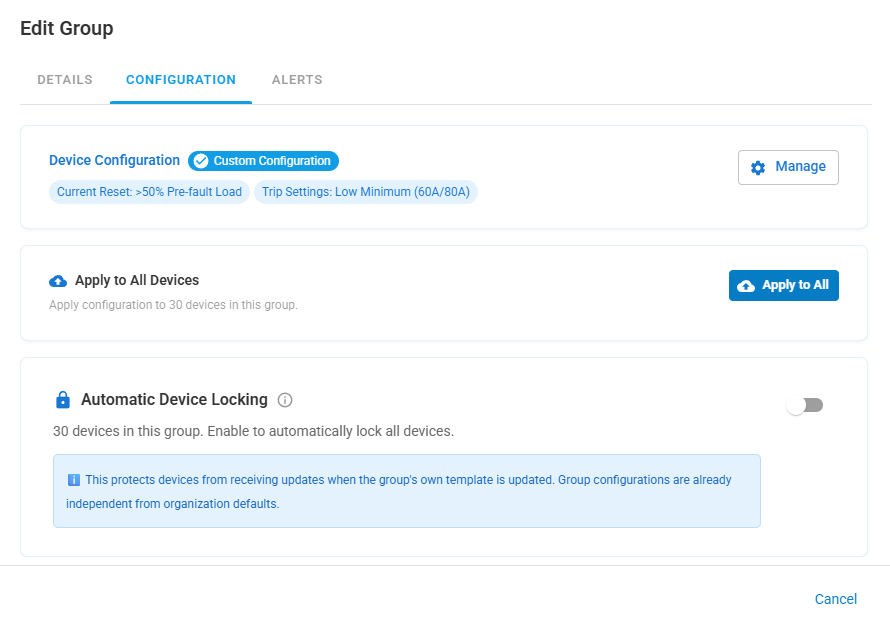
- 4 Select Edit, then open the Configuration tab.
- 5 From here, click Manage to define the template configuration settings for Devices in the Group.
When Devices are moved into a Group, their configurations will automatically update based on the Group’s saved configuration settings at their next successful check-in.
Any changes made to the Group’s configuration settings will automatically queue configuration updates for Devices within that Group. These updates will be applied at each Device’s next successful check-in.
If Organization-level configuration settings exist, newly created Groups will start with those settings by default. Group settings can then be adjusted separately from the Groups page if needed.
Apply to All Devices
From the Group’s configuration menu, users can select Apply to All to queue the Group’s saved configuration settings for all Devices currently assigned to that Group.
Once submitted, the configuration updates will remain Pending until each Device’s next successful check-in, when the update will be sent to the Device.
Automatic Device Locking
From the Group’s configuration menu, users can enable Automatic Device Locking to automatically lock existing Devices and any new Devices assigned to that Group. When enabled, locked Devices will not receive configuration updates when the Group’s saved configuration settings are updated. If needed, Devices can be individually unlocked from the Device’s configuration menu so they can receive future Group configuration updates.
Organization Configuration
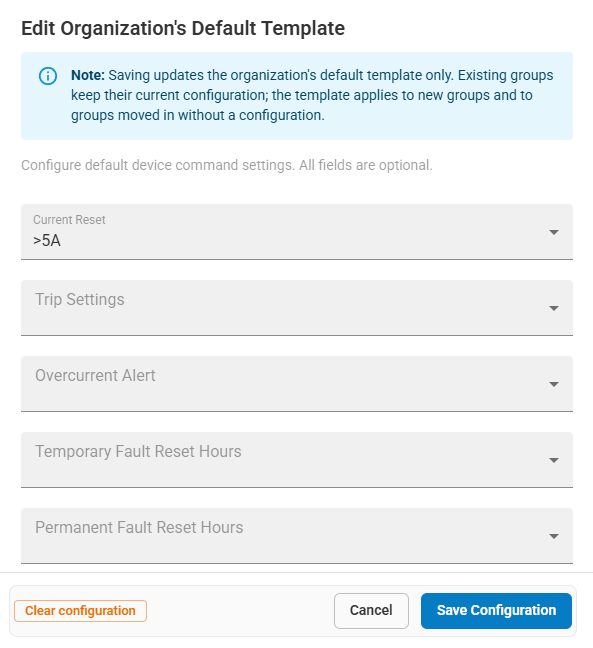
To configure the Organization’s default template configuration settings:
- 1 Navigate to the Organization screen
- 2 Click Manage under Device Configuration
- 3 Define the Organization’s default template configuration settings.
If Organization-level configuration settings exist, newly created Groups will start with those settings by default. Group settings can then be adjusted separately from the Groups page if needed. Saving changes here updates the Organization’s default template only. Existing Groups keep their current configuration. The template applies to new Groups and to Groups moved into the Organization that do not already have a configuration.
Configuration History
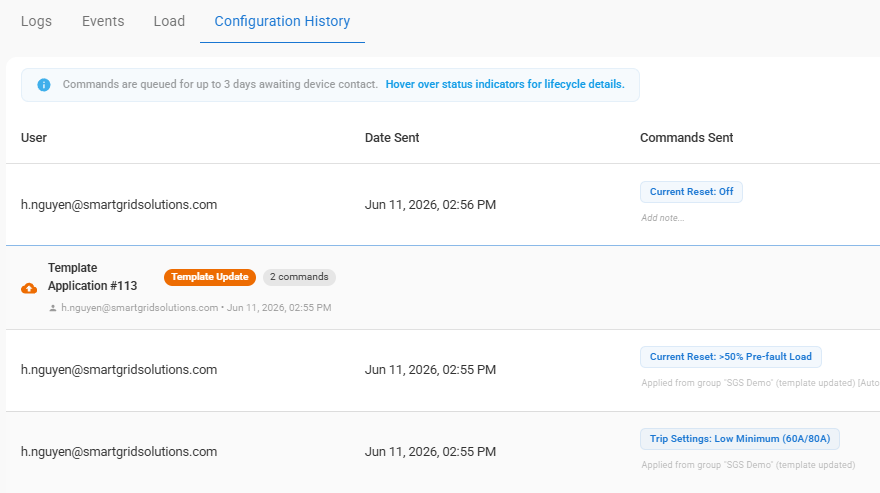
To view a Device’s configuration history:
- 1 Navigate to the Devices screen
- 2 Select the Device
- 3 Open the Configuration History tab
This tab shows a log of all configuration changes sent to the Device, including the user, settings applied, and status.
Canceling Queued Configurations
Submitted configuration changes remain pending until the Device’s next successful check-in. Pending configuration commands can be canceled before they are applied to the Device.
To cancel a queued configuration:
- 1 Navigate to the Devices screen
- 2 Select the Device
- 3 Open the Configuration History tab
- 4 Click the X button under Action for the pending command
If a new configuration conflicts with a pending command, the previous pending command will be canceled before the new configuration is queued.
Note
A daily digest will be sent summarizing configuration changes and indicating which updates were successfully applied.