
DM-1 Recon Relay — Field Use Instructions
Doc #MAY12_2026HN
IMPORTANT
These instructions are intended to provide general guidance for installation. Depending on the application, minor cutting or modification of the enclosure may be required.
Please note that SGS cannot be responsible for any damage, warranty implications, or other outcomes resulting from such modifications. Installation decisions should be made based on the specific requirements of your application.
Exit Shelf Mode
Shelf Mode
- All DM-1 units are shipped in Shelf Mode and must be taken out of Shelf Mode prior to installation and operation.
- TEST + AUX - Press and hold for approximately 2 seconds, then release, to enable or disable Shelf Mode. A rapidly blinking AUX LED indicates the unit is exiting Shelf Mode, while a solid AUX LED indicates it is entering Shelf Mode.
Other Button Reference
- TEST - Press briefly to initiate a cellular check-in and GPS lock. No check-in occurs while the unit is in Shelf Mode. The AUX LED blinks while the device is connecting.
- RESET - Press and hold for approximately 2 seconds, then release, to reset the device and clear any existing state (including faults). The LED briefly flashes before resetting.
Preparing the Installation Surface
A. Drill Holes for Components:
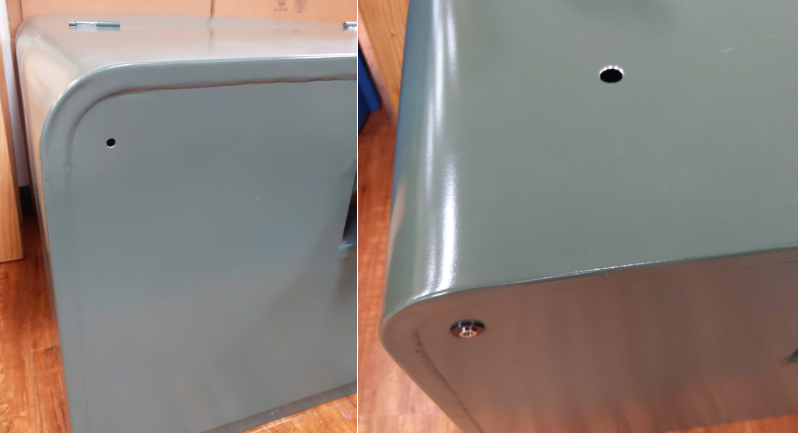
- LED Indicator: Drill a 3/8” hole on the front of the box.
- Antenna: Drill a 3/4” hole on the side, front, or top of the box, based on preference. Ensure the hole is positioned far enough from the edge for the antenna to sit flush.
Note: Placement of these holes is flexible for the end user
B. Clean the Installation Area:
- Ensure the surface where the antenna will be installed is clean, dust-free, and debris-free for optimal adhesive effectiveness.
Installing the Antenna
A. Remove the Antenna Wires:
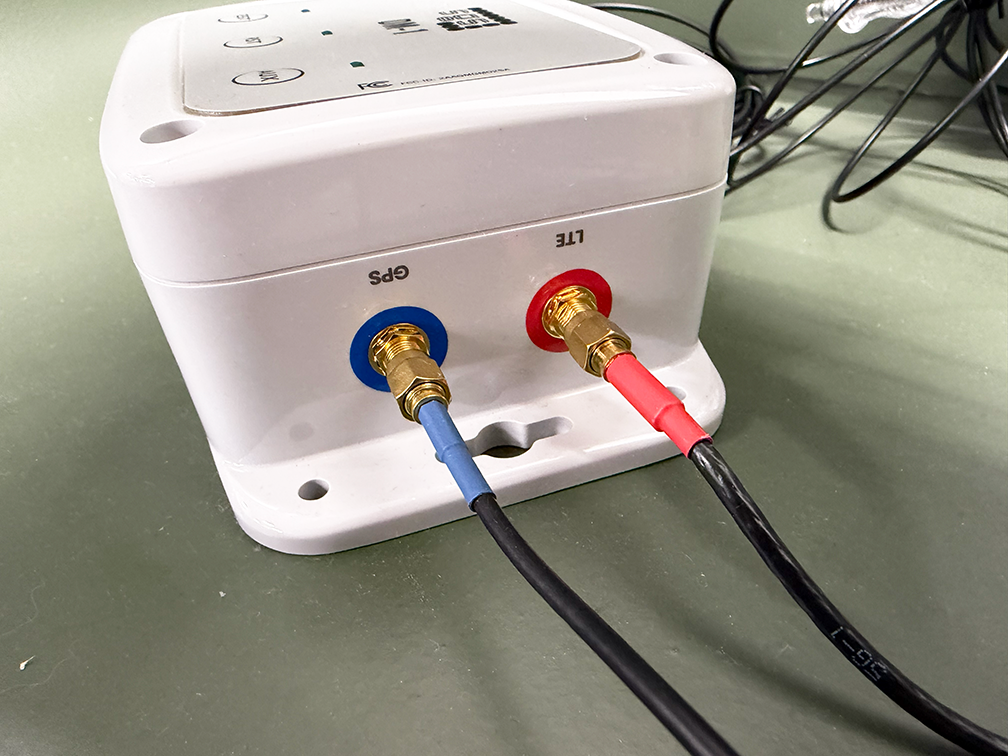
- Unscrew the red connector and blue connector antenna wires from the DM-1 unit.
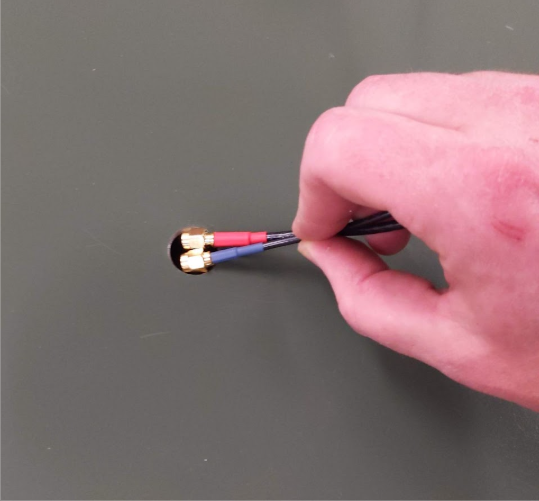
B. Feed the Antenna Wires:
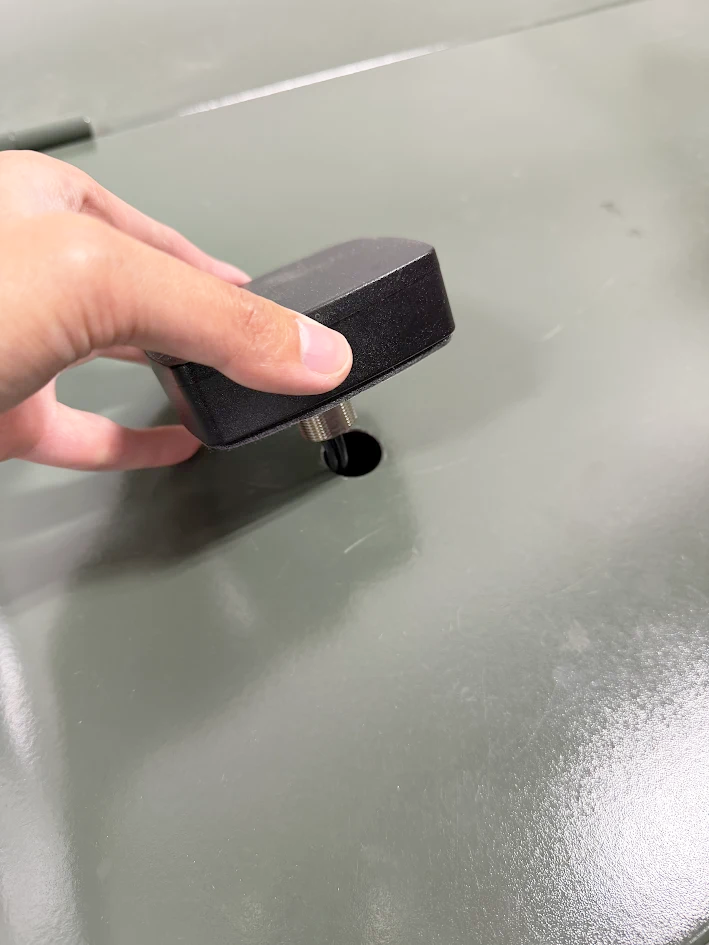
- Pass the antenna wires through the pre-drilled hole from the outside of the cabinet.
C. Secure the Antenna:
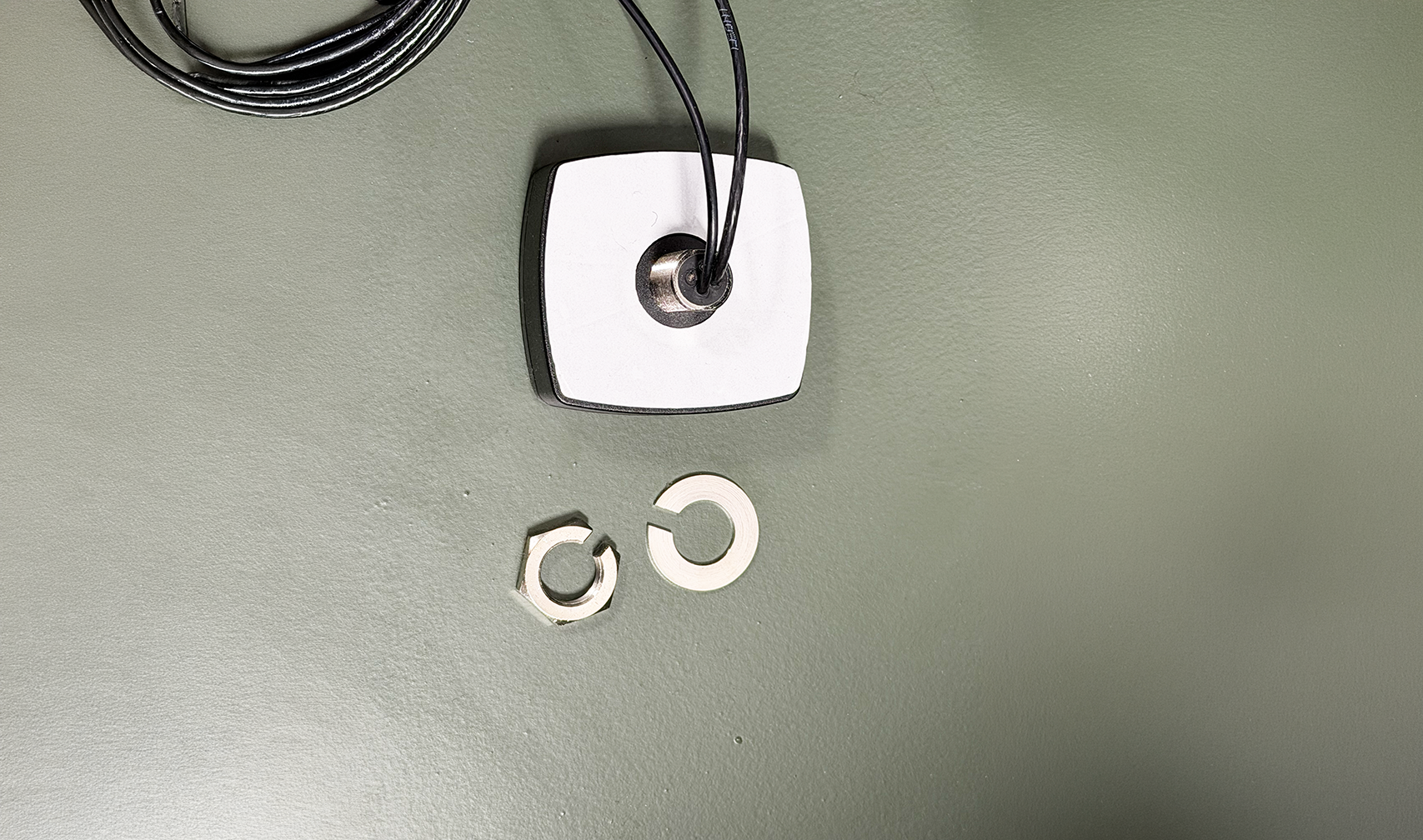
- Remove Nut and Washer: Before mounting the antenna, remove the washer and nut.
- Remove Adhesive Backing: Peel off the protective paper to expose the adhesive.
- Adhere the Antenna: Firmly press the antenna onto the cabinet surface, ensuring it sits flush.
- Fasten the Antenna: From inside the cabinet, secure the antenna using the included washer and nut.
Placing the DM-1 Unit
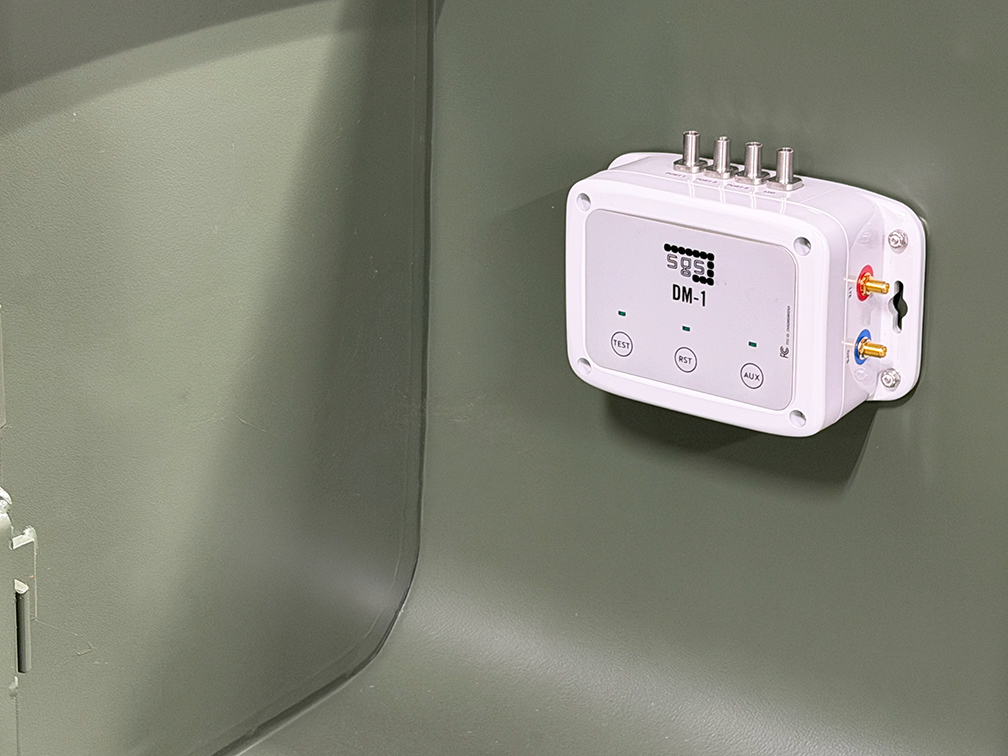
Position the Device:
- Place the DM-1 unit in the desired location within the cabinet.
- The DM-1 unit’s magnets will hold the unit securely in place.
Connecting the Antennas
A. Identify the Antenna Connectors:
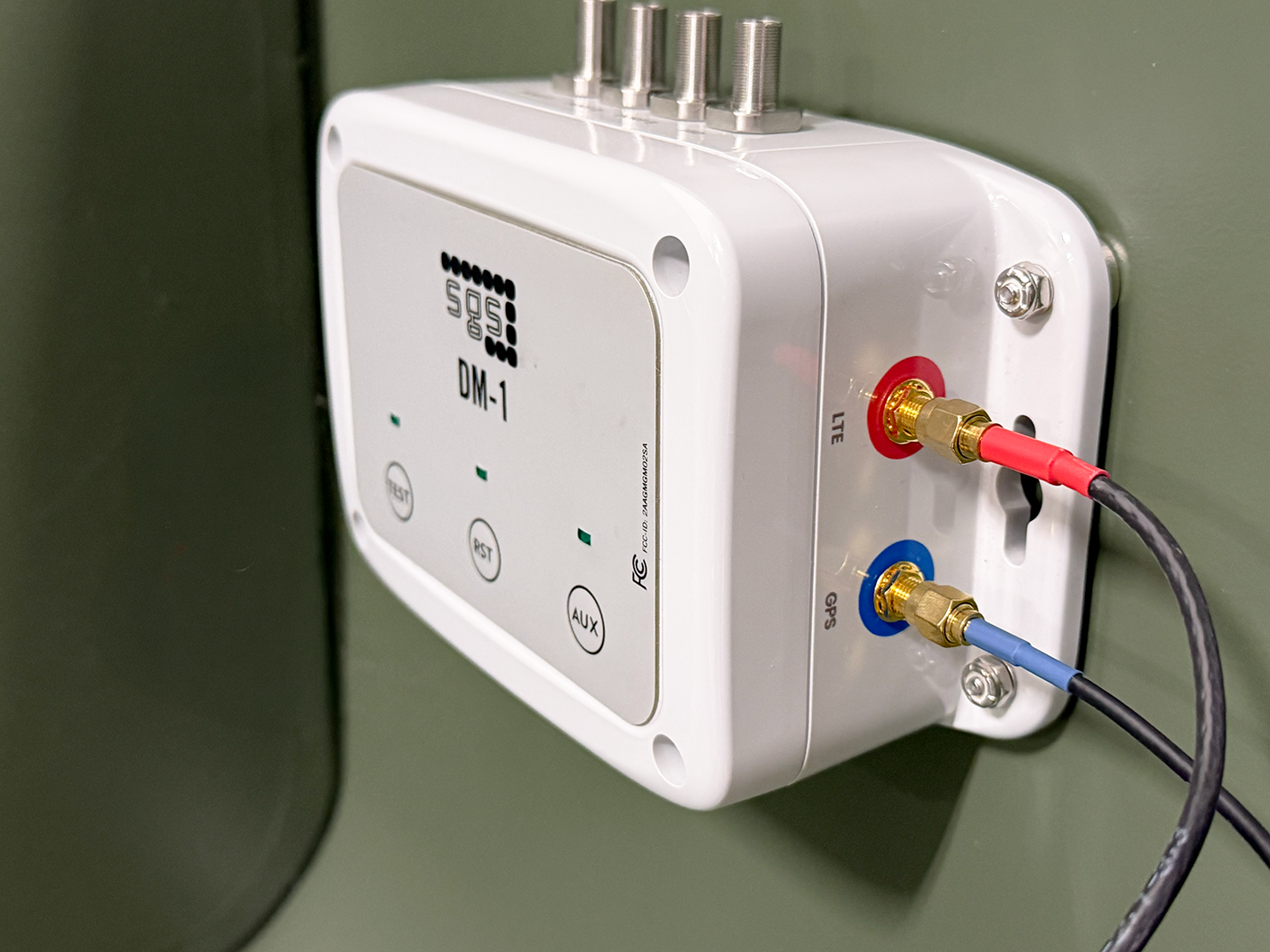
- Red Connector: Cellular LTE antenna.
- Blue Connector: GPS antenna.
Screw the antennas onto their respective coaxial ports:
- Red connector to the red LTE port.
- Blue connector to the remaining blue GPS Port.
Installing the LED Remote Indicator
A. Prepare the LED Remote Indicator for Installation:
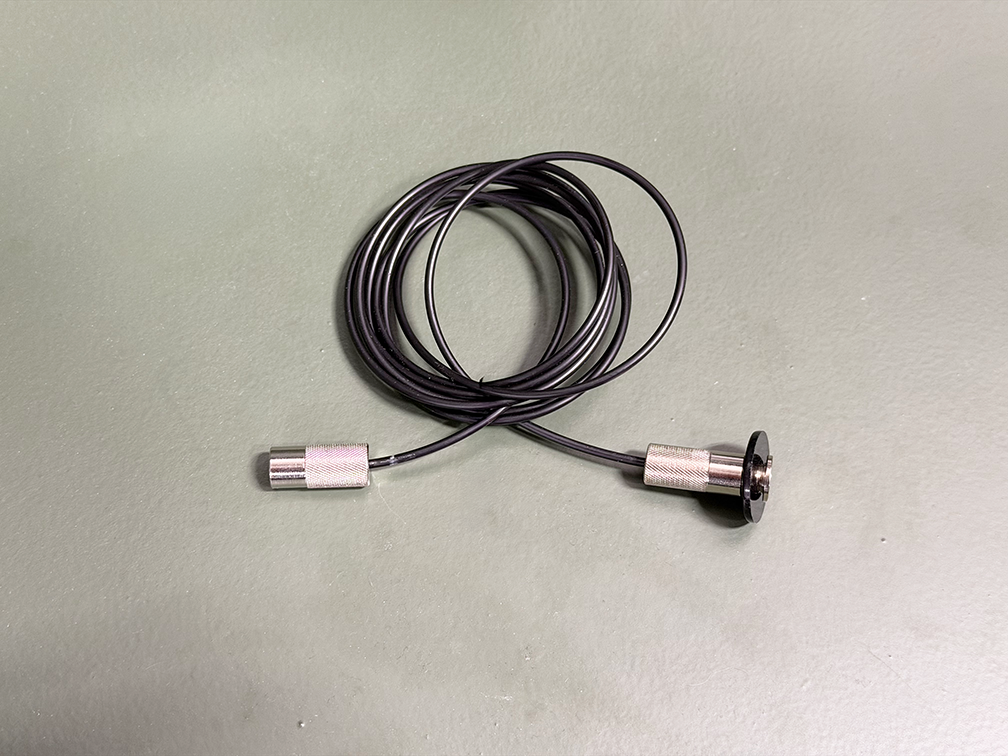
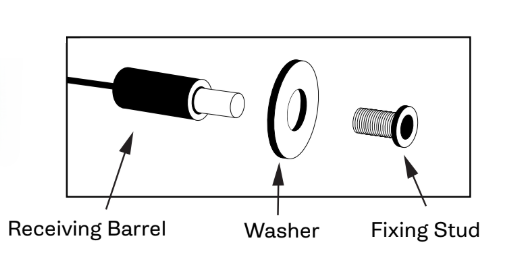
- Unscrew the Fixing Stud from the Receiving Barrel.
- Insert the Fixing Stud through the pre-drilled hole from Step 2.A, with both the Fixing Stud and the Washer on the outside of the cabinet.
B. Secure the LED Remote Indicator assembly:
- With the Receiving Barrel on the inside of the cabinet, screw the Receiving Barrel onto the Fixing Stud barrel.
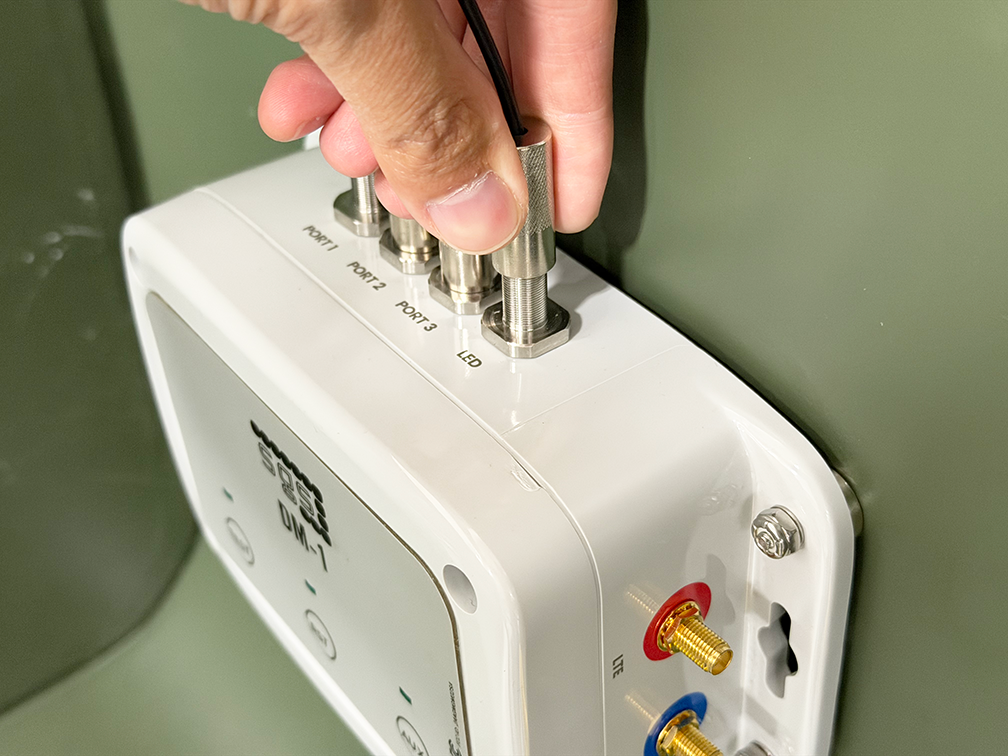
- If needed, screw the Receiving Barrel on the other end of the LED Remote Indicator assembly to the LED Port on the DM-1 unit.
Connecting Fiber Optic Cables
Plug Fiber Optic Cables into Fault Indicators:
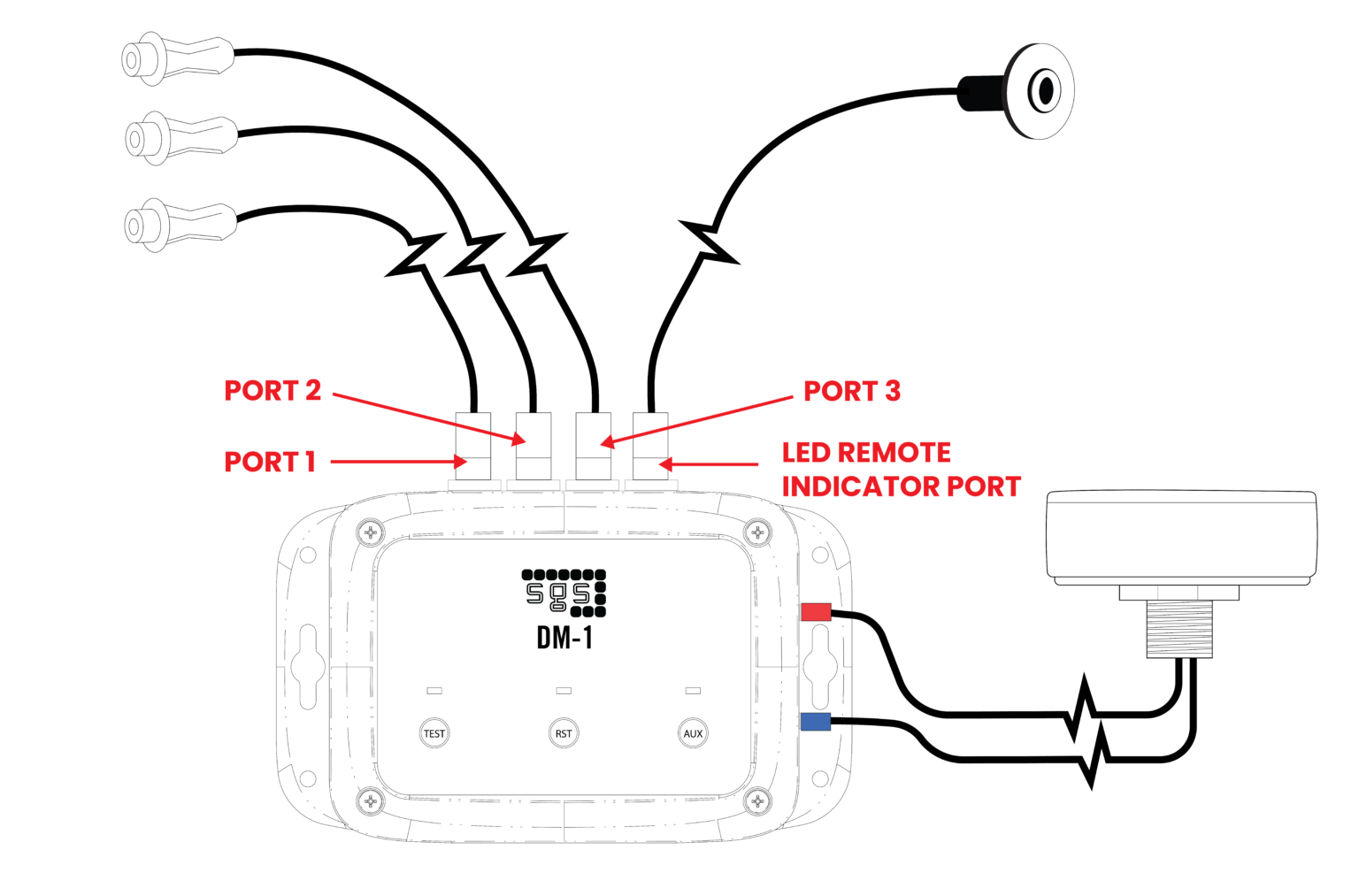
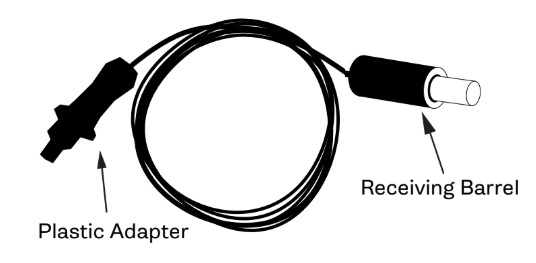
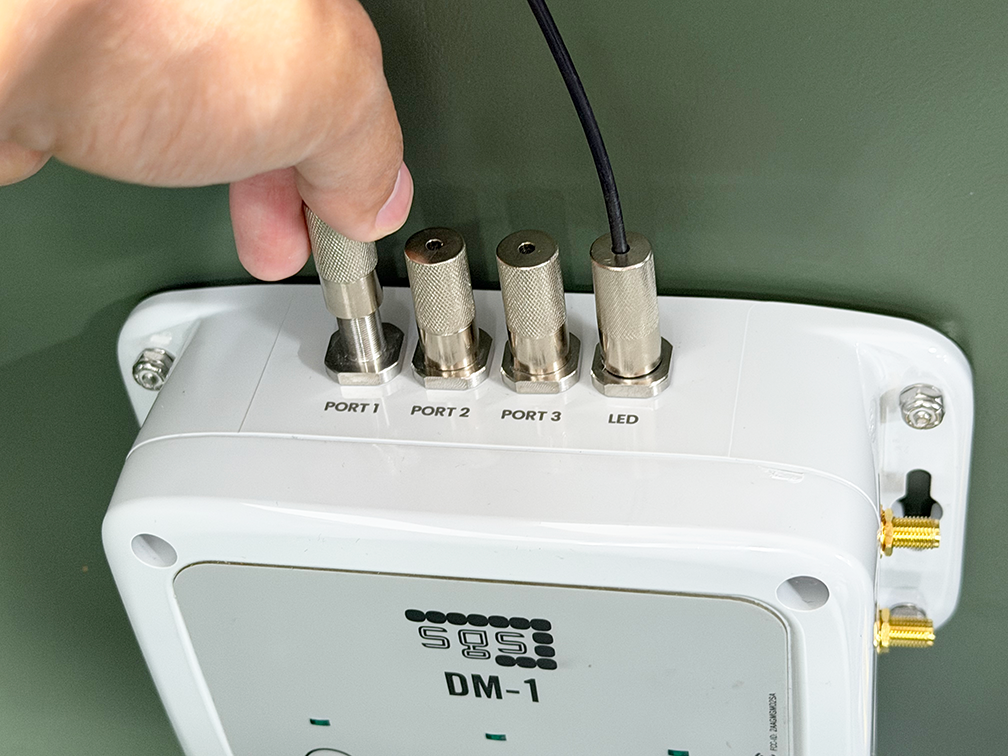
- For a three-phase application, connect the Receiving Barrels of the fiber optic cables to Port 1, Port 2, and Port 3 on the DM-1 unit, as shown on page 1.
- For a single-phase application, connect the Receiving Barrel of the fiber optic cable to Port 1 on the DM-1 unit. Ensure the protective caps remain securely installed on unused Ports 2 and 3 to prevent ambient light from entering the ports and causing false indications.
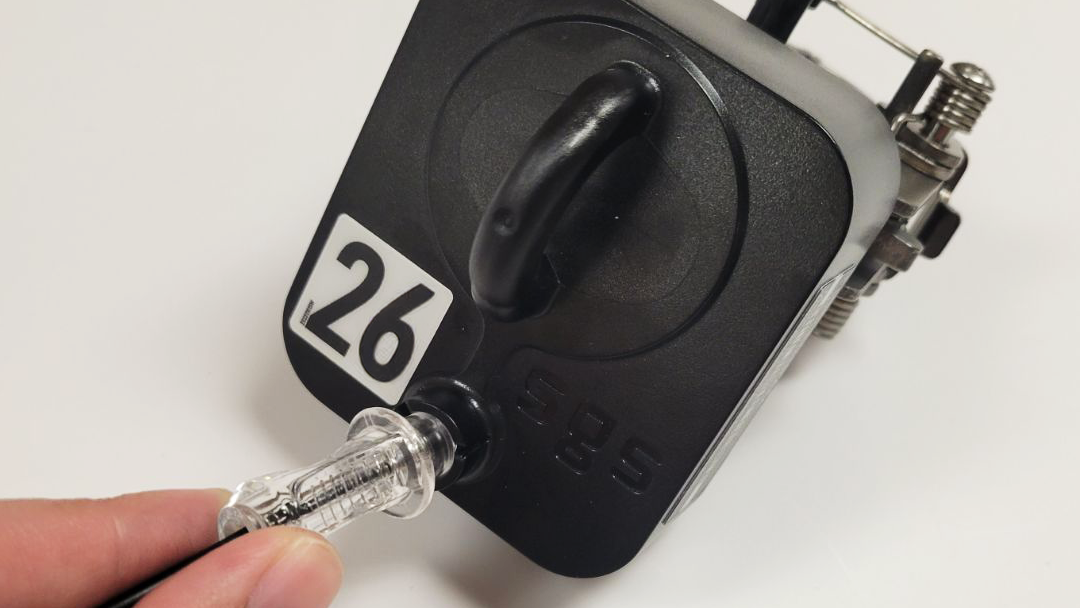
- Plug the Plastic Adapter of the fiber optic cable into the fault indicator.
Install The Fault Indicator(s)
Install the fault indicator onto the cable according to the instructions in the box of the fault indicator. Be sure to note the phase on which the fault indicator is installed, and its corresponding DM-1 Port to assure the ability to track events easily in the SGS web-based portal.
Final Checks
- Ensure all components (antenna, LED indicator, fiber optic cables) are securely installed and connections are tight.
- Confirm the antenna sits flush and adhesive is bonded.
- Verify that cables are routed properly to avoid interference or obstruction.
- Verify DM-1 Ports and their connected fiber optic cables corresponding phase if applicable.
- Press the TEST button to confirm cellular connectivity and successful communication with the SGS Portal.
It is recommended to use SGS’s FI-3C T1 or T2 cable trainers to secure antenna cables and fiber optic cables away from elbows or other workspaces inside the cabinet.